
Supplier price lists, from PDF to Excel
How to convert them, what to check afterwards and why checking matters as much as converting.
9 November 2026
Many suppliers send their price lists as PDFs. The format is convenient for reading, but impractical for updating prices, comparing product codes or importing data into an online store.
The risk is not only the time the conversion takes. A price shifted into another column or a misread product code can find its way into the catalog without anyone noticing. That is why the check afterwards is as important as the conversion itself.
First step: identify the type of PDF
Try selecting the text of the document with the mouse.
- If it can be selected, the PDF contains text and can be converted more reliably.
- If it cannot be selected, it is probably an image or a scanned document. In that case optical character recognition (OCR) is needed, and it can confuse numbers and symbols. A scanned price list requires a more careful review.
It is also worth looking at the structure: tables without lines, descriptions spread over several rows and pages with several columns tend to cause more problems.
Conversion methods
Excel
Excel can import tables from a PDF through Data > Get Data > From File > From PDF. Transform Data can then be used to clean the information before loading it into the sheet.
It is a good first option for clear tables, but it is not available in every version. According to the table of data sources published by Microsoft, the PDF source is listed for Microsoft 365, and is not marked for Office 2016 or Office 2019. It is not listed for Excel for Mac either, and the Android and iOS apps do not include Power Query.
Converters
There are many online converters. Before using one, consider whether the price list contains confidential supplier terms and check what the service does with the files it receives.
Copy and paste
It can work for a few rows. In long price lists, the risk of shifted columns and incomplete rows increases.
Checks before using the spreadsheet
Whatever the method, these checks are worth carrying out:
- Number of products. Compare the total in the spreadsheet with the PDF, at least by page or product family.
- First and last row of each page. These are the points where data is most often lost or merged.
- Prices as numbers. Check that Excel recognizes them as numeric values, especially when they include a decimal comma, a thousands separator or a currency symbol.
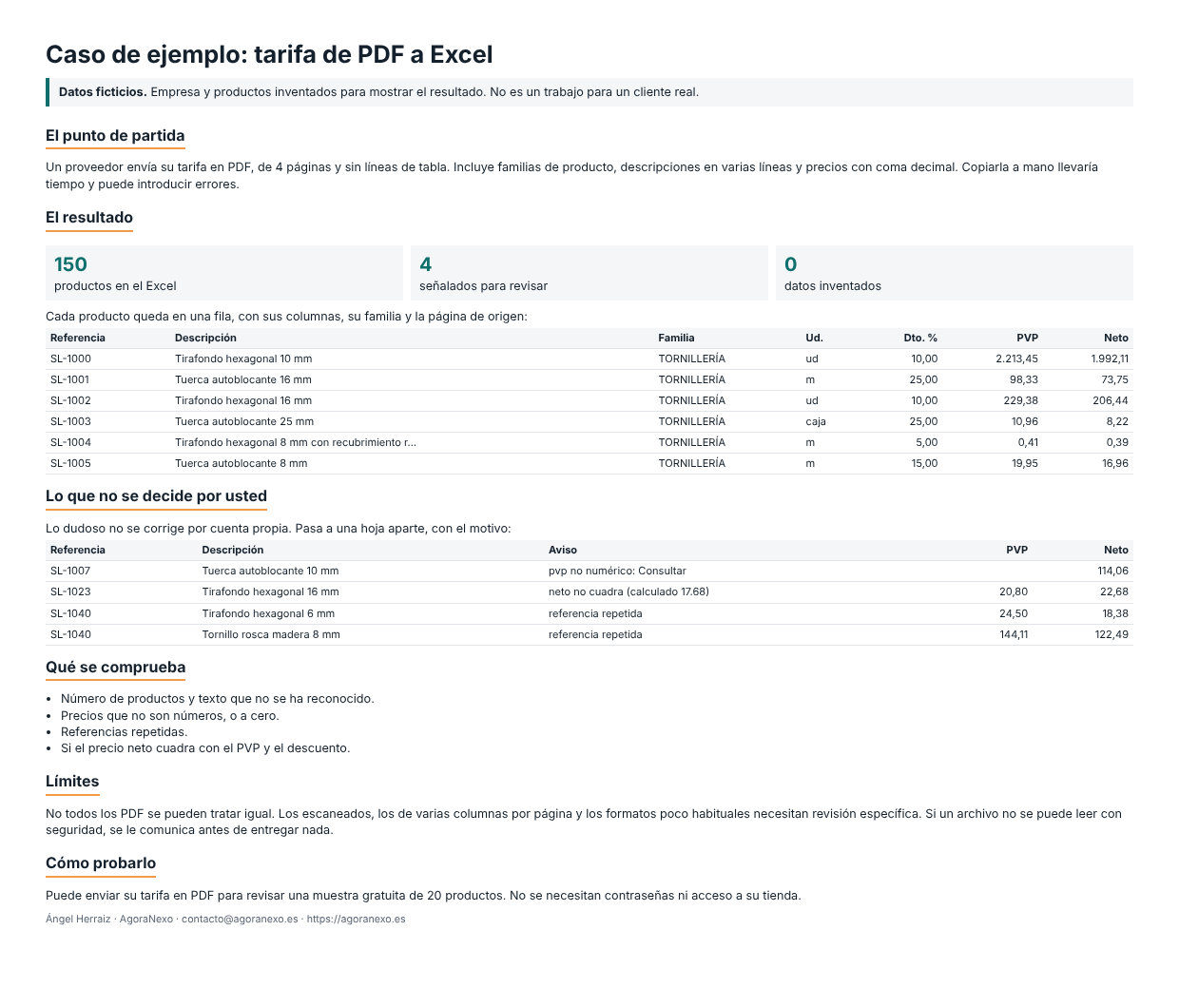
- Missing or zero prices. Some price lists include words such as "On request", which must not turn into a price.
- Repeated product codes. They may indicate a reading error or an error in the document itself.
- Leading zeros. Excel may remove them if it reads the code as a number. That column should be treated as text.
- Discounts. If the list includes list price, discount and net price, check that the amounts add up.
- Split descriptions. Make sure that text continued on a second line has not created a separate row.
- Manual sample. Compare a sample of products from different pages against the PDF, including the most expensive ones.
What to do with doubtful data
It is better to flag a doubt than to correct it by guesswork. If a value cannot be confirmed, mark it in a separate column and check it with the supplier.
Nor is it advisable to update the whole store directly with the result. It is safer to review price changes and new or discontinued product codes first.
What a converted price list looks like
Checked on 9 November 2026 against Microsoft's documentation.
Free sample review
If you wish, you can send your price list as a PDF. Once the file has been reviewed, the answer says whether it can be processed, and a free sample of 20 products in Excel comes back, with any doubts flagged.
The service is quoted per file, usually between €99 and €190 per price list. VAT not included. For now, documents with clear tables are accepted. Scanned PDFs and highly visual catalogs are not.
This service prepares the data but does not include publishing it in a store. For that, the catalog upload service is available.
Request the free sample
Fill in the form and a reply follows within 24-48 working hours. You can also write directly to contacto@agoranexo.es. Replies are in writing, in English or Spanish.